
Personal Project · 2026 · v3.0
Boop Free budget app & expense tracker for iPhone
Your friendly money buddy, made in the Philippines.
Track your gastos and income in pesos across cash, GCash, Maya, BPI, BDO and every credit card, and swipe through your wallets like a deck of real cards. Set monthly budgets, see bills before they’re due, and keep your ipon goals and utang in view. Bank SMS alerts and Apple Pay taps can log themselves, a daily streak keeps the habit going, and Insights tells you in plain words where your money went. No account and no bank logins: your records stay on your iPhone and your own iCloud.
What’s new in Boop 3.0
The biggest Boop yet: streaks, badges, a new Insights tab, and wallets you can swipe.
-
Boop Streaks
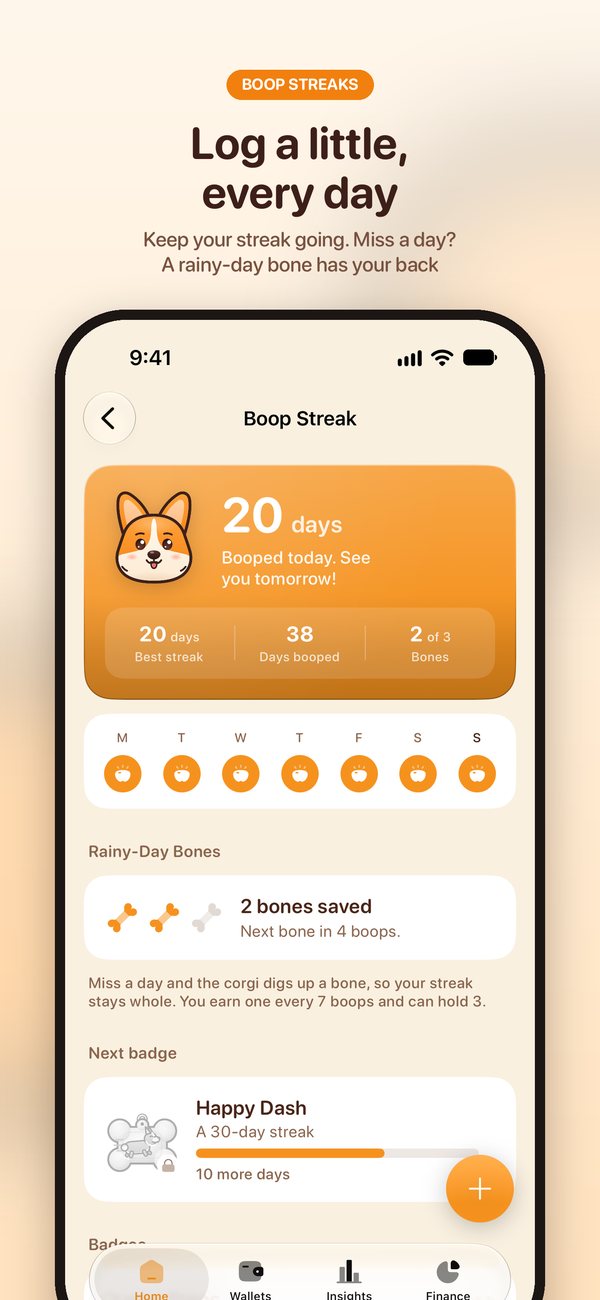
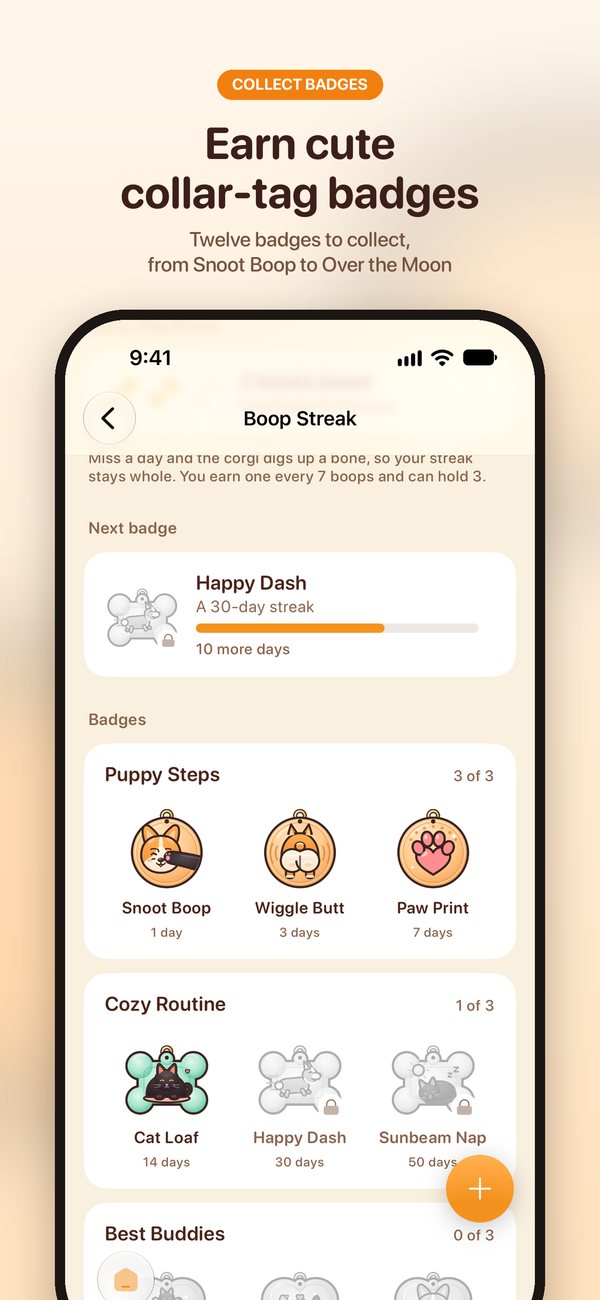
Log something each day to keep your streak going. Miss a day and a Rainy-Day Bone keeps it whole. Collect 12 collar-tag badges along the way.
-
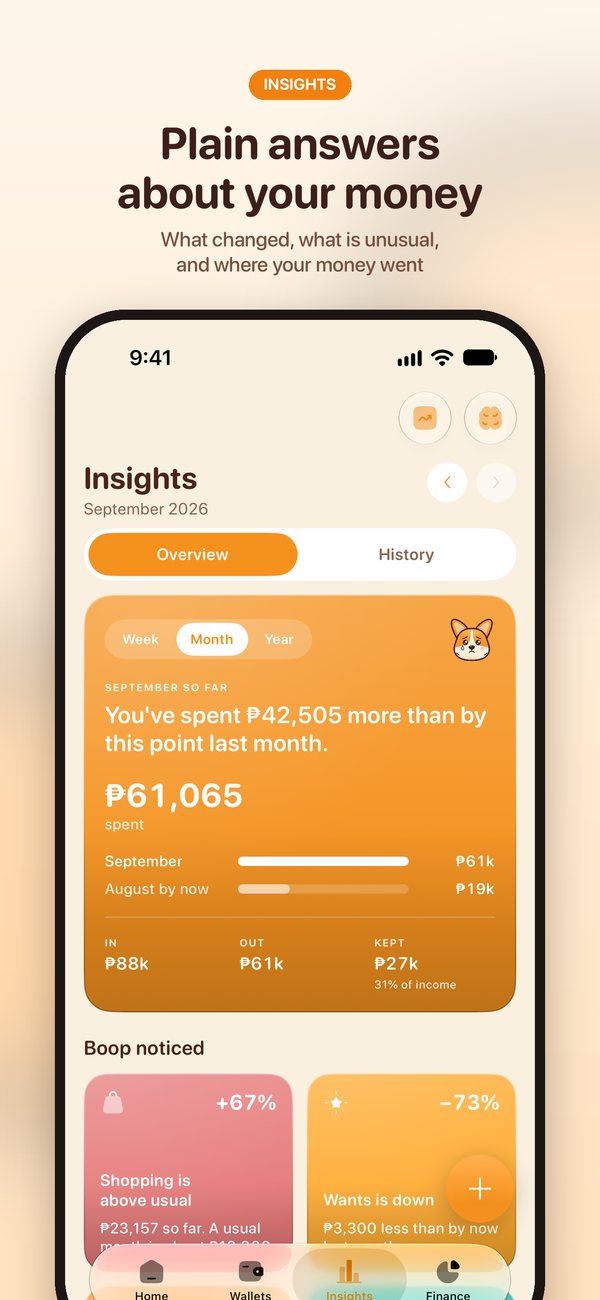
Insights, in plain words
Insights has its own tab now, built around plain answers: what changed since last month, what’s unusual, and where your money went.
-
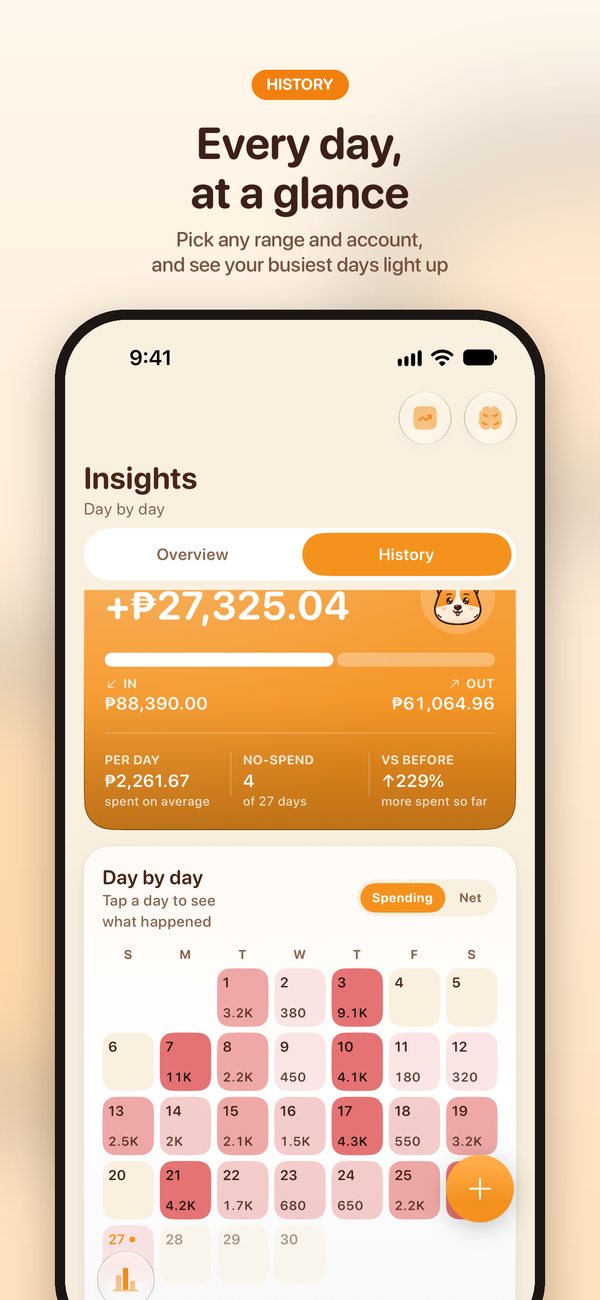
A new History
Pick any range — this week, this month, this year or custom — and any accounts, then see every day on a spending calendar.
-
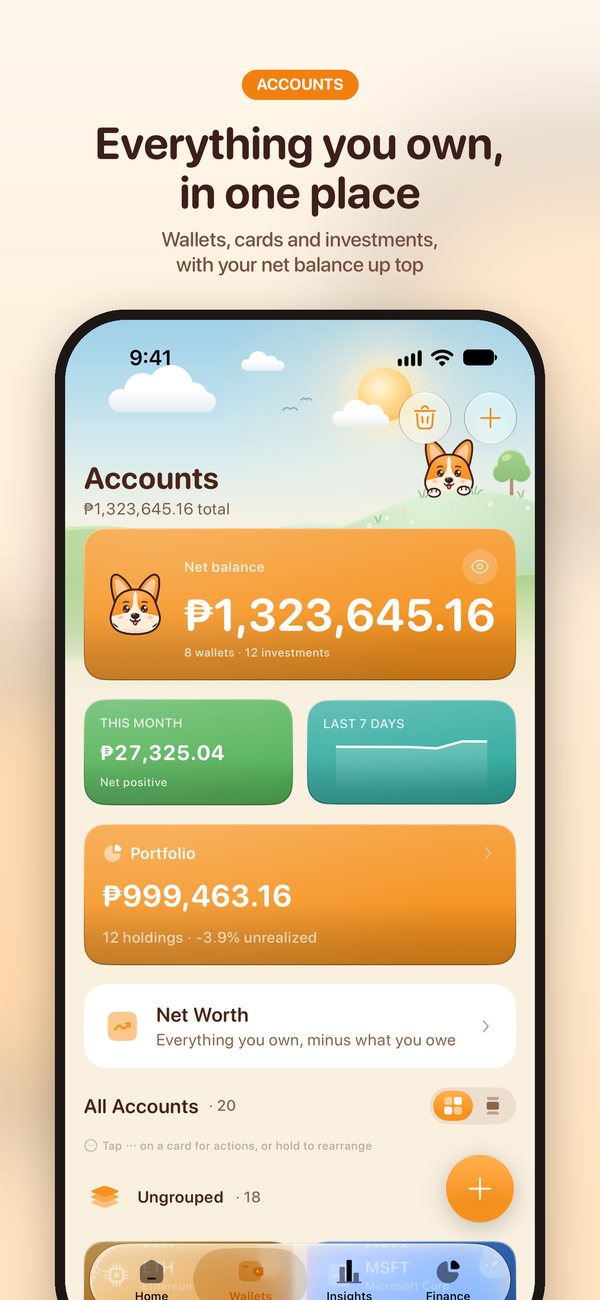
Wallets as real cards
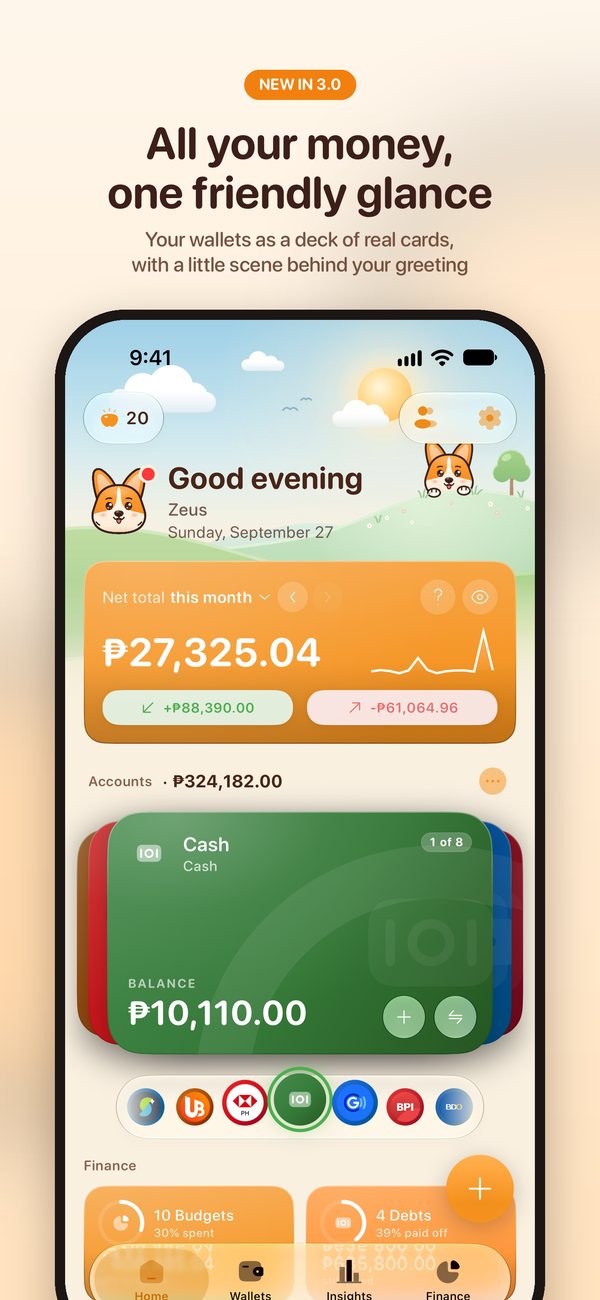
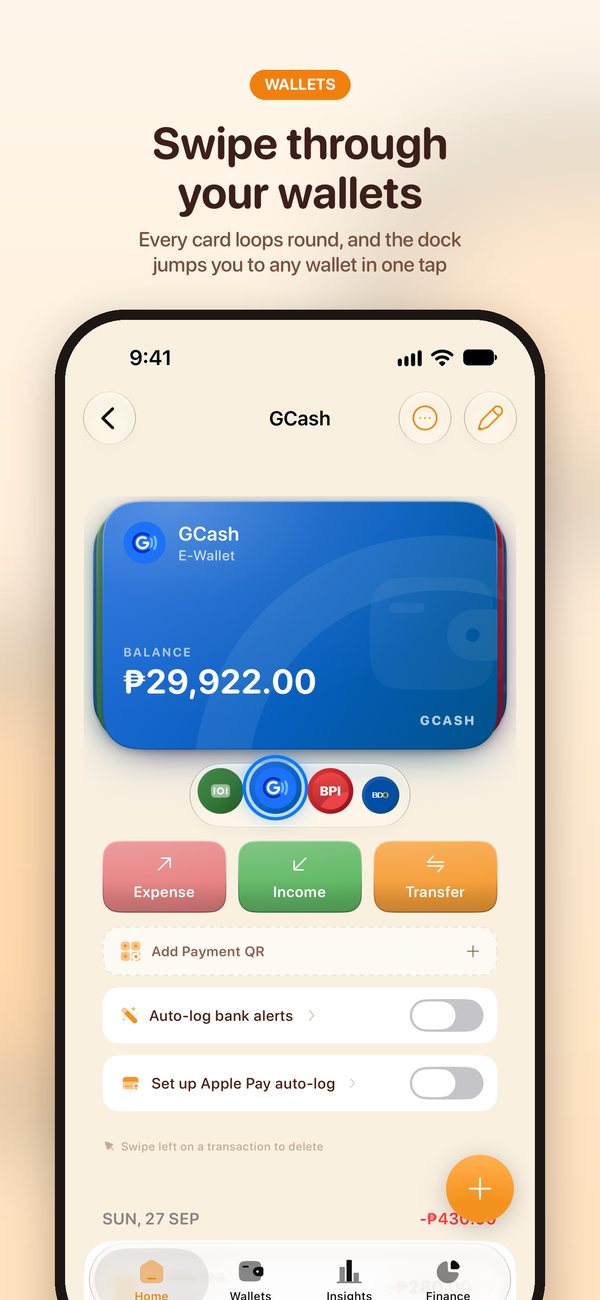
Swipe through your wallets like a deck of cards, or jump straight to one from the dock of icons underneath.
-
Header themes
A little illustrated scene at the top of Home, Wallets and Finance, to make Boop feel like yours.
-
Bills on Home
Upcoming bills show up right on Home, and every card, bill and debt can have its own reminder time.
A budget app built for how Filipinos pay
Pesos first, e-wallets and banks side by side, and a lot less typing.
-
GCash, Maya and your banks
Give cash, GCash, Maya, BPI, BDO and every card a wallet of its own, each with its own balance. Transfers between them keep both sides right.
-
Bank SMS auto-log
A Shortcuts automation reads GCash, Maya, BPI, BDO and other bank alerts on your iPhone and logs the transaction for you. No bank login needed.
-
Apple Pay auto-log
Tap to pay and Boop logs the amount and the shop by itself, with no prompts. Set it up in five steps.
-
Credit cards and installments
Statement and due dates, installments and interest, so you know what the next credit card bill will be before it arrives.
-
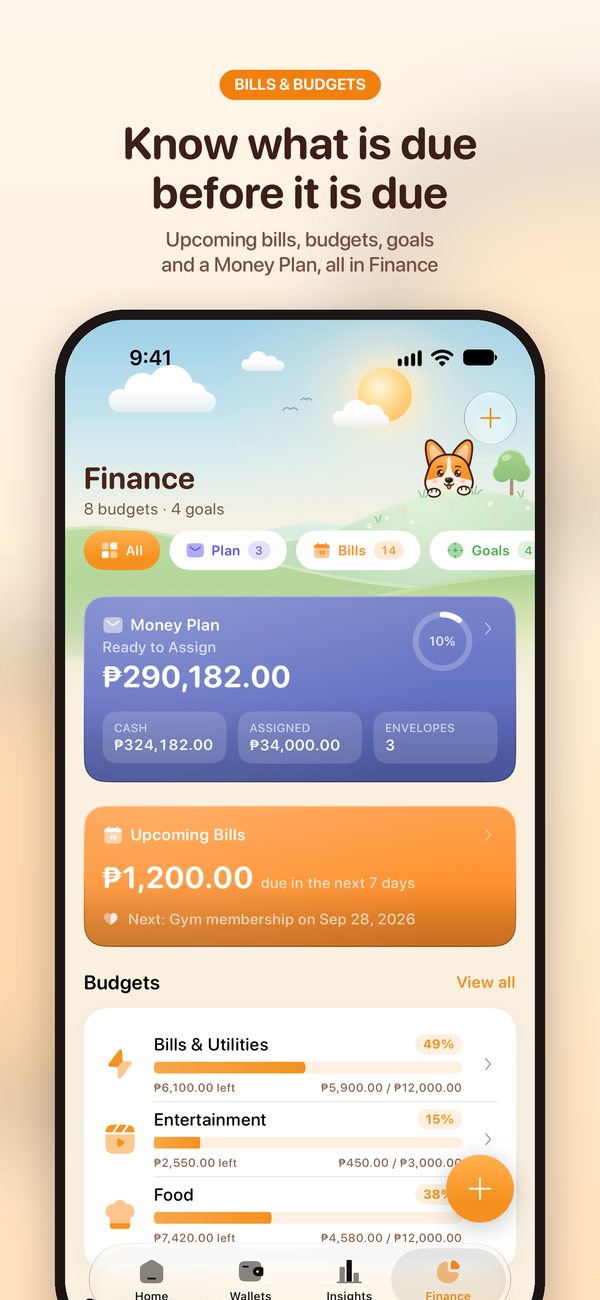
Budgets, ipon goals and utang
Monthly budgets by category, savings goals for your ipon, and debts to pay down, all in one Finance tab.
-
Money Plan envelopes
Split your sweldo into envelopes for bills, food and savings. The sobre method, without the sobres.
-
Pesos first, any currency
Boop starts in ₱, and wallets in other currencies convert at live exchange rates, handy for remittances and trips abroad.
-
Hide amounts, widgets, CSV
Hide balances with one tap when someone’s looking, check spending from a Home Screen widget, and export or import CSV any time.

New guide · Apple Pay × Shortcuts
Log Apple Pay payments automatically
Set it up once and every Apple Pay tap logs itself into Boop: the amount, the shop and the account, with no prompts and no opening the app.
- In Boop, turn on Set up Apple Pay auto-log for the account your taps charge.
- In Shortcuts, create a Wallet automation that runs immediately.
- Add Boop’s Auto-Log Payment action.
- Pick the Boop account this card charges.
- Connect Amount, Merchant and Card or Pass.
Pick your icon
New in Boop 3.0: six Home Screen icons starring the corgi and the cat. Choose the one that feels like yours.
-
 Boop FaceDefault
-
 Card Stack
-
 Wallet Pup
-
 Corgi
Corgi
-
 Cat
Cat
-
 ClassicThe original
Switch any time in Settings › Theme › App Icon.
Take the 30-second tour
Meet the corgi and the cat, and see Boop 3.0 in action. Sound on.
Boop in 15 seconds
Five short clips, one feature each. Tap to play.
-
Log a little, every day
-
Saan napunta ang pera ko?
-
All your wallets, one deck
-
Team Corgi or Team Cat?
-
Private by design
Boop Web Helper
A companion workspace for the jobs that are easier on a big screen — free, and open in any browser.
Coming from Money Manager
Drop in a Realbyte export and it becomes a Boop-ready CSV, with your accounts and categories carried across instead of retyped.
Edit on a keyboard
Fix a run of wallets or transactions in a table, then export and import the file back into Boop. Faster than tapping through a long list on a phone.
Nothing leaves your browser
There is no upload and no account. Your file is read on your own machine, the same way Boop keeps your data on your phone.
Best on a desktop browser. Your CSV never leaves your computer.
What people say
★ 4.8 average from 164 ratings on the Philippine App Store, plus a few of the reviews.
“Everything I need on a finance tracker is here.”
“Just all the things I am looking for are in this app. It made finance tracking and budgeting easy.”
“Not a fan of writing reviews for apps, but I think this deserves to be rated. Thank you very much for creating this, and for free.”
“Best money tracker app I’ve stumbled upon. Grateful to the developer for making such an app.”
“This app is intuitive and easy to use. I have been looking for this kind of app. Thank you.”
“You can adjust the interest rates by bank, auto transfer, auto reminders, auto logs… and it’s FREE!”
Frequently asked questions
Is Boop free?
Yes. Boop is free to download and use, with no subscriptions. It shows ads from Google AdMob. A one-time Remove Ads purchase, any tip, or the all-themes header bundle turns them off for good. Extra header themes are optional one-time purchases (₱49 each, or ₱399 for all of them plus no ads); the Sunny Meadow theme is free.
Is my financial data private?
Boop has no account and no sign-up, and it never asks for bank logins. Your records stay on your iPhone and sync only to your own iCloud. The ads come from Google AdMob, and Boop asks for your consent before showing personalized ads. The privacy policy has the details.
Does Boop connect to my bank account?
No. Boop never links to a bank or asks for your online banking password. You log money yourself, scan a receipt, or let a Shortcuts automation on your own iPhone log it for you from a bank SMS alert or an Apple Pay tap.
Does Boop work with GCash and Maya?
Yes. Add GCash, Maya, cash and each bank account or credit card as its own wallet, in pesos. Boop can read GCash, Maya, BPI, BDO and other bank SMS alerts through a Shortcuts automation and log the transaction for you. Wallets in other currencies convert at live exchange rates.
How does Apple Pay auto-log work?
You set up a one-time automation in the Shortcuts app. When you tap a card in Apple Wallet, it runs Boop’s Auto-Log Payment action, which records the amount and the shop in the Boop account you picked, with no prompts and no opening Boop. Follow the five-step Apple Pay guide.
Is Boop available on Android?
Boop is on iPhone for now.
Can I move my data over from another budgeting app?
Yes. Boop imports and exports CSV files. The free Boop Web Helper runs in your browser and turns a Money Manager export into a Boop-ready file, so your accounts and categories come across instead of being retyped.
What do I need to run Boop?
An iPhone on iOS 18 or later. The Apple Intelligence money advisor needs iOS 26 on an iPhone that supports Apple Intelligence; everything else works without it.